Four customer payments arrived. They did not belong in the same workflow.
Maya Collins runs Harbor Pack Supply, a small wholesaler that delivers food-service packaging around town. After the last stop of the day, she sits down with the cash and transfer notes collected from customers. Four payments need to be entered in Salesdocks:
- Maple Street Kitchen paid exactly $286 for its September 22 lunch-box delivery.
- Brick & Bean Café paid $361, covering two deliveries: $145 for cups and $216 for lids.
- Cedar Deli Group sent $500 without saying which delivery it was for.
- Riverside Market paid $90 left over from Maya's old paper ledger. There is no matching sale in Salesdocks.
All four reduce accounts receivable, but they do not describe the same accounting event. If Maya simply subtracts each amount from a customer's balance, an individual sale may still look unpaid after the customer's total reaches zero. The reverse can happen too: a sale can look settled while the customer balance is still wrong.
The useful question is not “How much came in?” but “Which sale or sales does this money settle?”
- One known sale: open that sale and record its payment.
- Several known sales: select those sales and settle them together.
- No invoice reference, only an amount: receive by amount and let Salesdocks allocate it to the oldest confirmed sales first.
- No sale exists in the app: add a manual receivable collection to the account history.
1. When the payment matches one sale, record it on that sale
The note with Maple Street Kitchen's $286 says “Sep 22 lunch-box delivery.” Maya opens Sales #507 and confirms that its unpaid amount is also $286. The customer, delivery note, items and balance all point to the same job.
She taps Record Payment, chooses the way the money was received, enters $286 and checks that Remaining is $0.00. After recording it, the payment appears in that sale's Payment History with its date and amount.
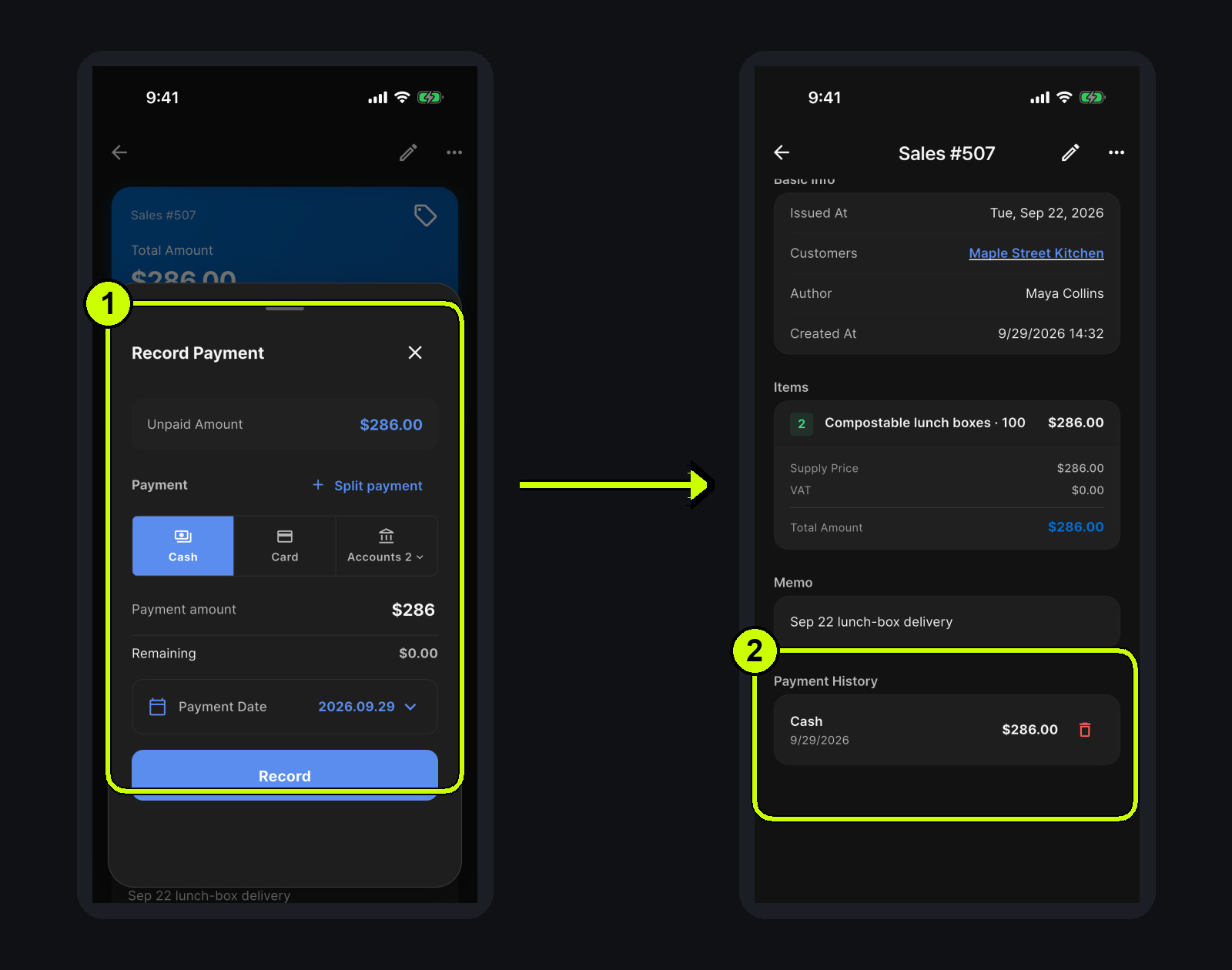
This is the cleanest route whenever the link between money and sale is already known. Months later, Maya can open the sale and see the delivered lunch boxes and the payment in one place instead of reconstructing the link from a customer-level adjustment.
Although this example clears the full $286, the same screen can record less than the outstanding amount. In that case the sale remains partially paid. It is better to think of this as recording a payment against one specified sale, not merely as a “mark paid” shortcut.
2. When one payment covers several known sales, select those sales
Brick & Bean Café usually orders cups and lids together, but the two items went out on different dates:
- September 18: 16 oz PET cold cups, $145
- September 25: flat cup lids, $216
- Amount received: $361
The amount matches those two open sales exactly. Maya opens the customer's settlement area, enters the receivables list by tapping the receivable amount, and chooses Multi-select. She checks both sales and confirms the action showing an unpaid total of 361. After payment, Brick & Bean's settlement status is Settled, with receivables at $0.00.
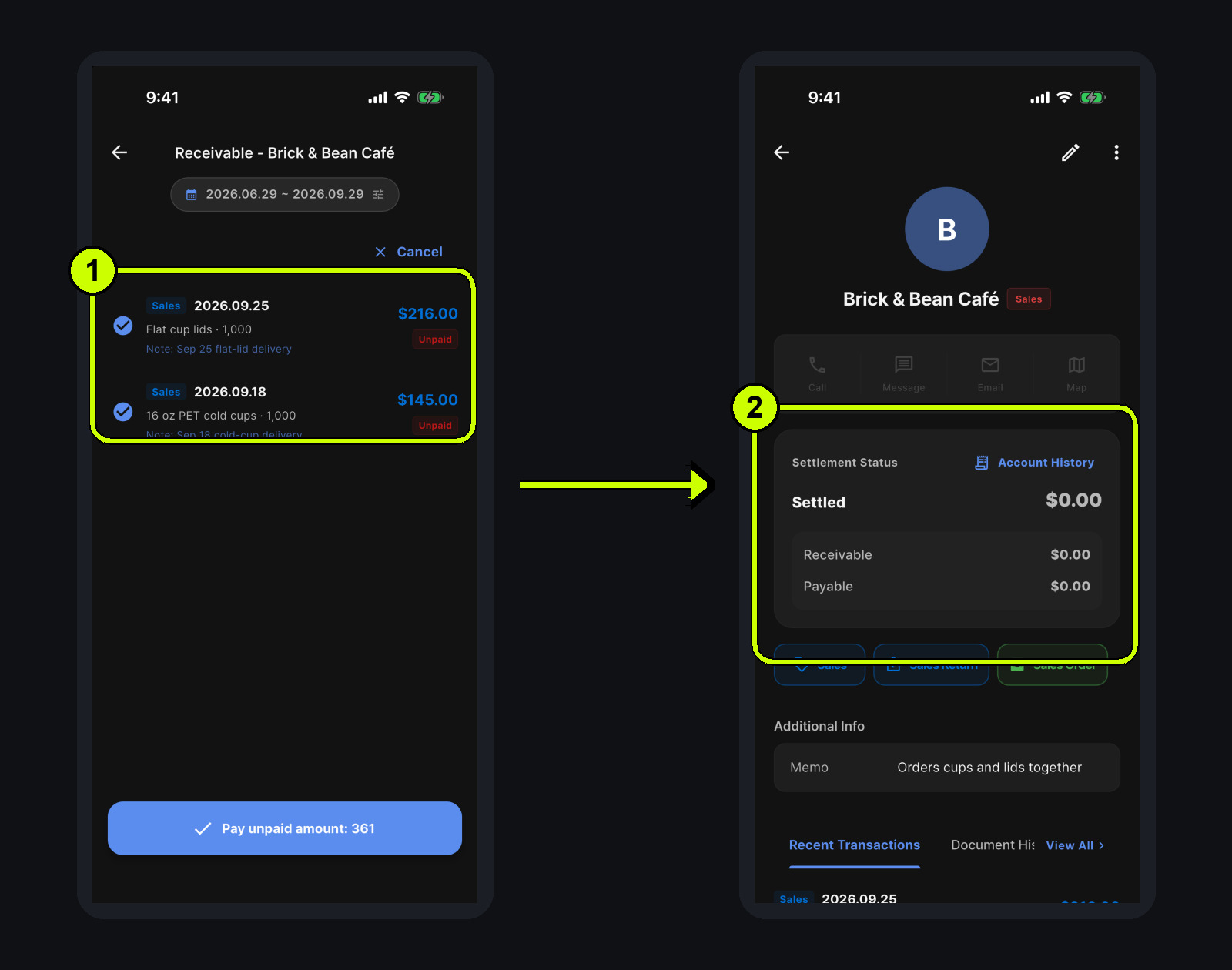
This method preserves the fact that one remittance closed two specific sales. It also avoids opening each sale and repeating the same payment step.
There are two nearby paths that serve different purposes. Account History shows the customer's ledger. To select sales or receive a lump sum, tap the receivable amount row in the settlement card instead. Also check the date filter at the top of the receivables screen: it initially covers a recent period. If an older unpaid sale is missing, expand the date range before assuming that the record is gone.
3. When the customer gives only an amount, apply it oldest first
Cedar Deli Group sends $500 with no invoice number, sale number or delivery date. Maya's open receivables list contains three confirmed sales:
- September 5: kraft takeout bags, $240
- September 12: sandwich wrap sheets, $360
- September 24: kraft sauce cups, $170
- Total receivable: $770
Rather than guessing which sale the customer meant, Maya chooses Receive by amount and records $500. Salesdocks applies the money to confirmed sales in transaction-date order, starting with the oldest. If several sales share a date, the earlier-created sale comes first.
The left side below shows all three unpaid sales before the payment. On the right, the September 5 sale has disappeared and the September 12 sale is marked Partial.
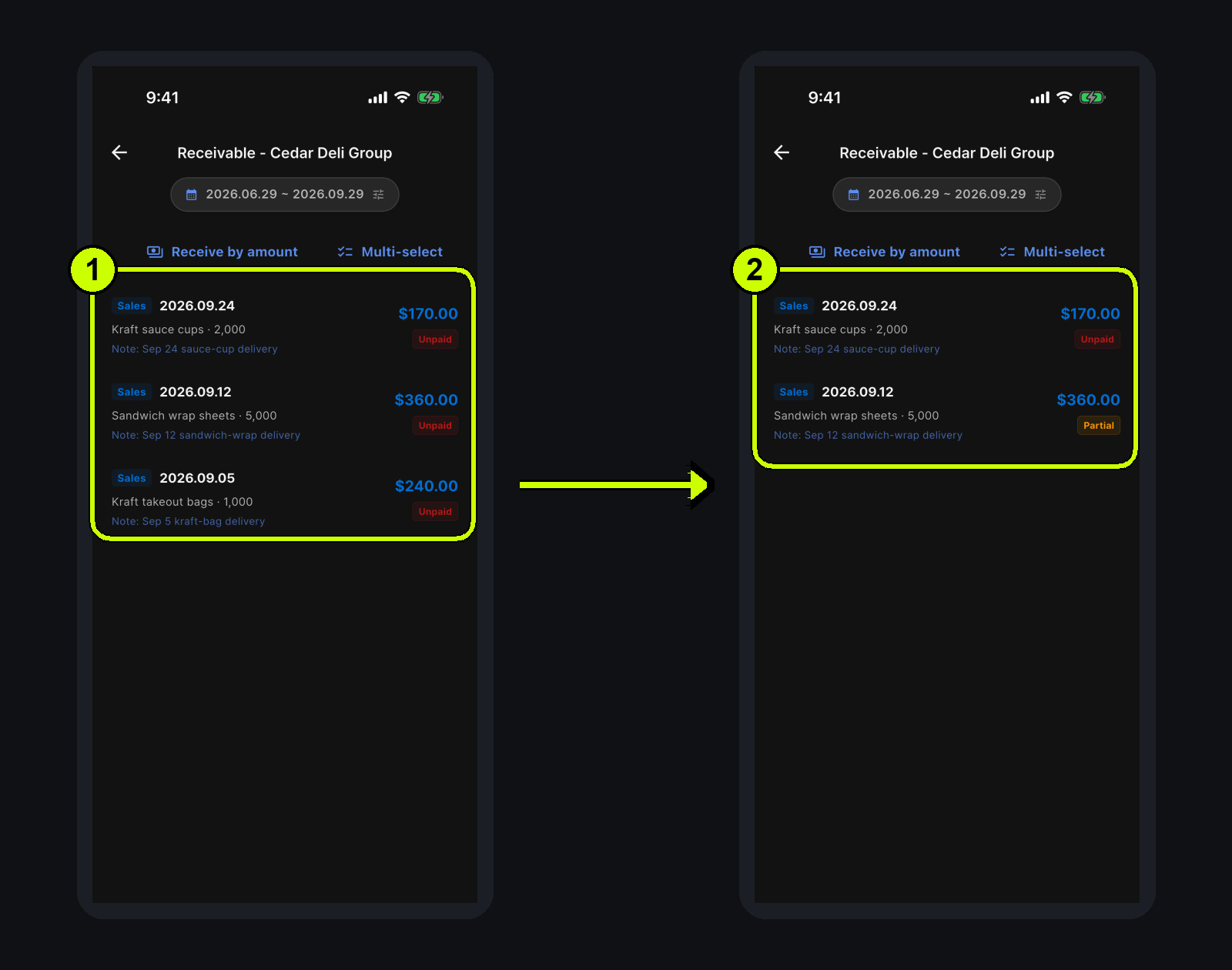
The result follows directly from the allocation:
- $500 - $240 = $260. The September 5 sale is paid in full, so it no longer appears in a list of outstanding receivables.
- $360 - $260 = $100. The remaining $260 is applied to the September 12 sale. That sale still has $100 due, so
Partialis the correct status. - Nothing remains to apply to the September 24 sale, so its full $170 stays unpaid.
Cedar Deli therefore still owes $100 + $170 = $270. This is why a $500 receipt can legitimately produce a partial-payment badge: the payment cleared the oldest $240 sale and only part of the next $360 sale. The older row is not hidden by accident; it has been fully settled and has left the outstanding-only list.
Amount-based receipt applies to confirmed sales that still have a balance. Draft or unconfirmed transactions are not part of that allocation. Salesdocks also prevents an amount larger than the eligible receivable total, so verify an apparent overpayment before trying to post it.
4. Use a manual collection only when there is no sale to connect
Riverside Market's $90 is different. It is an opening receivable carried over from Maya's paper ledger when she started using Salesdocks. No sale in the app created that balance.
Maya opens Account History, taps Add account, selects Manual receivable collection, and enters $90 with the actual collection date. The result is a -$90 manual collection entry, and the receivable total falls to $0.00.
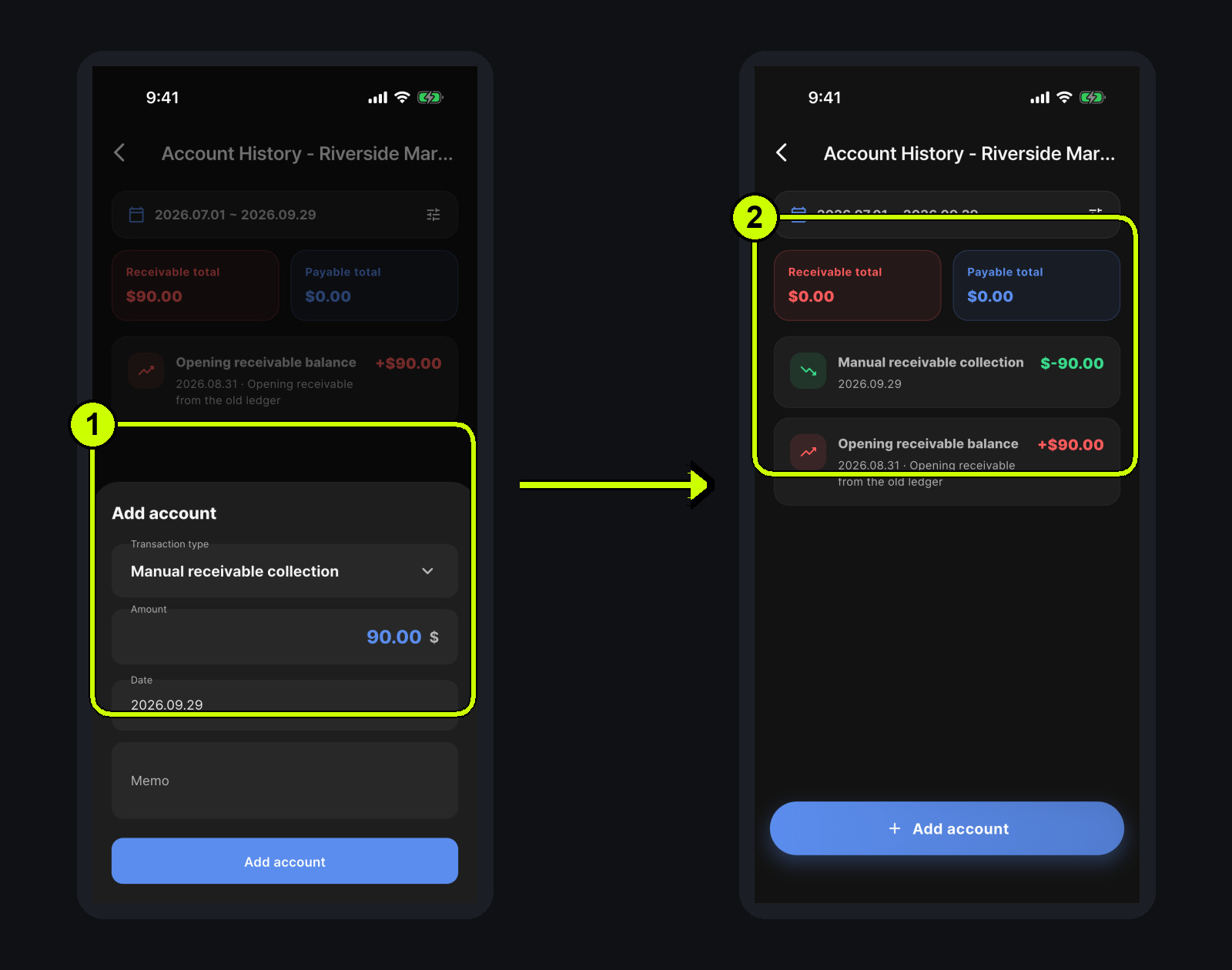
This form does not ask for cash, card or a bank account. A manual collection reduces the customer ledger directly; it does not create a payment record on a particular sale.
That distinction is also the main safeguard. If the original sale does exist in Salesdocks, do not use a manual collection just because it is quick. The customer total may fall while the sale itself remains unpaid. Use methods 1 through 3 whenever a sale can be identified, and reserve manual collection for opening balances or other migrated amounts with no in-app transaction.
Reconcile the connection, not just the total
Before Maya closes the books for the day, she works through the same short check:
- Does the money belong to one sale, several known sales, an unspecified amount, or an old balance with no sale?
- When a sale was specified, does that sale now show paid, partial or unpaid as expected?
- After receiving by amount, did the oldest sale leave the list and does the arithmetic explain the partial sale that remains?
- After a manual collection, was there genuinely no sale in Salesdocks to link?
- Where a payment method and date were recorded, do they match what actually happened?
Accounts receivable work is not finished simply because cash arrived. It is finished when the books explain which delivery that cash settled and what the customer still owes.